


Microsoft Word: Edit Documents
4.8118.28K Reviews
App Specs
- Version
- Varies with Device
- Updated On
- License
- Free
- Downloads
- 1,000,000,000+
- Developer
- Microsoft Corporation
- Categories
- Productivity
- Platform
- Android, iOS
Screenshots

 Analysis by AppCompare
I use a phone for more than reading documents: sometimes I need to fix a paragraph before sending it, add a note to a shared file, or make a quick start on a longer piece of writing. Microsoft Word: Edit Documents is Microsoft Corporation’s mobile productivity app, and I find it most useful when I need to keep working on a Word document away from a computer. It brings familiar editing tools to a small screen, though it isn’t a full replacement for desktop Word in every situation.
What free access means in practice
The app is free to download, and its age rating is Everyone. There are in-app purchases, with listed items ranging from $0.99 to $199.99, so “free” describes the initial access rather than guaranteeing that every paid option is included. I’d install it and try the tasks I actually need before deciding whether any purchase is worthwhile; the right value depends on how I use Word, not on a promise that every feature costs nothing.
Its reach is considerable: Word has over 1 billion installs and an average rating of 4.8 from around 16 million ratings. Those figures suggest that it is a familiar choice for many people, but they don’t tell me whether a particular mobile workflow will suit me. I treat them as context, then judge the app by whether it handles my own documents comfortably.
Guides and Analysis on Microsoft Word: Edit Documents
Everyday editing and the mobile workflow
First things first, as soon as I opened the app, I was greeted by a clean and intuitive interface. The layout is pretty similar to what you’d expect from the desktop version, which is a huge win for regular Word users. Navigating through the app felt like second nature, with all the essential tools and features just a tap away.
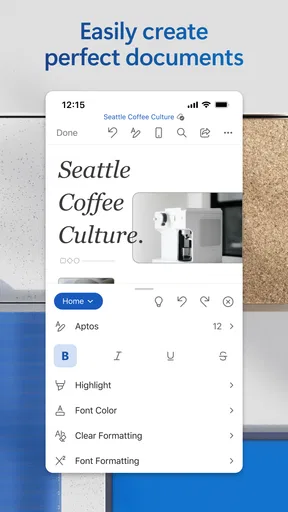
The ribbon interface makes a comeback here, albeit simplified for mobile use. You can easily access formatting tools, insert tables or images, and even use some fancy features like SmartArt. It’s essentially your trusty Word but pocket-sized.
Powerful editing tools, with a phone-sized trade-off
When it comes to editing documents, this app doesn’t disappoint. I was able to create, edit, and save documents without any hiccups. The app supports multiple file formats, which is a blessing for those who deal with a variety of document types.
One feature I found particularly handy was the collaboration tool. You can share documents and collaborate in real-time, making it perfect for team projects. The track changes feature is also available, which is a must-have for anyone involved in editing and proofreading.
Worth Reading Before You Choose

Baby Panda World Brings Quick Play to Modern Phones, but Its Game Library Feels Busy

ESPN’s Live Game View Makes Following Close Games Easier

QuizzLand Review: A Good Fit for Short Trivia Breaks, Not Every Player

Basketball Stars: Multiplayer Is Fast, but Can It Recover When Matches Go Wrong?

WEBTOON Turns Phone Updates Into a Better Reading Routine

Link to Windows Runs on Shared Habits, Not Social Feeds
For a practical review workflow, I’d use Track Changes when a colleague needs to see exactly what I altered, rather than sending a clean copy that hides the edits. On a phone, I’d keep those changes focused: correcting a sentence or responding to a small revision is manageable, while a document with many edits is easier to inspect on a larger screen. Before sharing, I’d also check that I’m working in the intended file and that my edits have been saved, especially if I have several drafts with similar names.
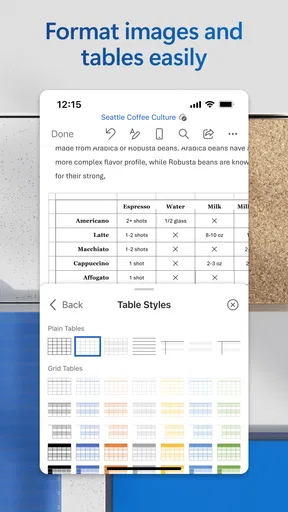
Tables and images are useful additions when a document needs more than plain text, but inserting them is not the same as laying out a polished report. I see mobile editing as a good way to make a targeted change or add a piece of content while away from my desk. If exact spacing, page breaks, or a carefully balanced layout matter, I’d reserve the finishing pass for a computer, where the page is easier to assess as a whole.
Files, sharing, and working across devices
Another big plus is how seamlessly Microsoft Word: Edit Documents integrates with other Microsoft Office apps. Whether you’re pulling data from Excel or crafting a presentation in PowerPoint, everything syncs beautifully. Plus, it works like a charm with OneDrive and Dropbox, so accessing your files from anywhere is a breeze.
And for those wondering about cross-platform compatibility, you’re in luck. The app works smoothly on both Android and iOS, which means no one’s left out in the cold. Just make sure you have a stable internet connection for the best experience.
That connection matters most when the job involves shared files or moving between devices. A realistic use for me would be reviewing a draft during a commute, leaving a correction, then opening the same document later on a computer to check the broader context. The phone handles the quick intervention; the desktop is better for the final read-through. If I know I’ll be without a reliable connection, I’d plan ahead by making sure I can reach the right document before leaving, rather than assuming every cloud-based handoff will be available at the moment I need it.
Compared with lightweight note-taking apps, Word is the more natural choice when the end result needs to remain a formatted document that other people can edit or review. A notes app may feel faster for capturing an idea, but it is less suited to a document workflow built around Word files, tracked edits, and collaboration. Compared with a desktop word processor, the mobile app wins on convenience and loses on screen space and the depth of its tools. I’d choose based on where the work will be finished, not just where it begins.
Limits worth knowing before you rely on it
Of course, no app is perfect. While the app performs admirably, it does have its quirks. Occasionally, I noticed slight lags when dealing with particularly large documents. Also, some advanced features from the desktop version are absent, which might be a dealbreaker for power users.
However, for everyday document editing and creation, these issues are minor and don’t significantly detract from the overall experience.
Those limitations are easier to judge when I separate editing from document production. A quick typo correction, a short comment, or a modest rewrite is a sensible phone task. A large file that already feels slow, or a complex document where small layout shifts could cause problems, deserves more patience and a larger display. I wouldn’t choose mobile Word as my only tool for demanding formatting work; I would use it as a practical companion for the parts of that work that fit a touch screen.
Another useful habit is to treat a shared document as a live workspace rather than a static attachment. Before making a substantial change, I’d confirm that I have the right version and consider whether collaborators may be editing at the same time. The real-time collaboration and Track Changes features can help a group coordinate, but they don’t remove the need to communicate clearly about who is revising what. For a simple personal note, that process may be unnecessary; for a team draft, it can prevent avoidable confusion.
Who gets the most value
I’d recommend it most to people who already work with Word documents and need a dependable way to handle small or medium edits away from a computer. Students can use it to review a draft or make a last-minute correction; someone preparing a work document can respond to feedback without waiting to get back to a desk; and collaborators can use Track Changes to make revisions visible. In each case, the strongest benefit is continuity: the document can remain part of a familiar Word workflow instead of being copied into a separate writing tool.
It is less compelling for someone who only wants a blank page for occasional personal notes, or for a power user whose routine depends on the full set of desktop tools. If a free-form notes app already meets your needs, Word may bring more document structure than you want. If precise page design or advanced editing is central to your work, I’d use a desktop option for the main task and keep the phone app for review and smaller changes.
Whether a paid purchase adds value depends on the specific option and the work you expect it to support. I wouldn’t assume that an in-app purchase is necessary just because the app offers them, nor would I assume the free download includes every capability someone might want. I’d start with the core editing and sharing tasks I care about, then weigh any paid choice against a clear need rather than paying in hope of a vague upgrade.
My verdict on keeping it installed
Microsoft Word was released on January 6, 2015, and its long-standing familiarity is part of the appeal: people who already know the desktop layout can get oriented without learning an entirely different way to work. Still, familiarity doesn’t erase mobile compromises. I find the app most convincing when I use it for focused edits, collaboration, and document access across devices, and less convincing when I expect a phone to handle every stage of a complex project.
In conclusion, Microsoft Word: Edit Documents is a solid choice for anyone needing to handle documents on the go. It brings the familiar Word experience to your mobile device with enough features to satisfy most users. So, if you’re looking for a reliable way to edit and create documents wherever you are, this app is worth a download. After all, having Microsoft Word in your pocket is nothing short of a game-changer!
Pros
- User-friendly interface for easy navigation.
- Seamless integration with OneDrive storage.
- Rich formatting options for documents.
- Real-time collaboration features available.
- Extensive template library for various needs.
Cons
- Subscription required for full features.
- Some features need active internet connection.
- Occasional lag on older devices.
- Limited offline editing capabilities.
- High storage space required for installation.
FAQs for Microsoft Word: Edit Documents
What are the key features of Microsoft Word: Edit Documents on mobile?
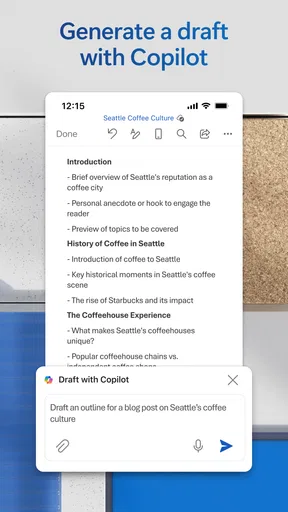
Microsoft Word: Edit Documents on mobile offers a wide range of features including document creation, editing, and collaboration. Users can access Word’s rich formatting tools, track changes, and use templates. The app also allows for easy sharing and collaboration in real-time with others, making it extremely versatile for both personal and professional use.
Is Microsoft Word: Edit Documents free to use on Android and iOS?
While Microsoft Word: Edit Documents can be downloaded for free on both Android and iOS, some features require a Microsoft 365 subscription. The free version allows for basic document viewing, editing, and sharing, but premium features like advanced formatting and collaboration tools are available only with a subscription.
How does Microsoft Word: Edit Documents handle file compatibility and formats?
Microsoft Word: Edit Documents supports a wide array of file formats including DOC, DOCX, PDF, and more. The app ensures seamless compatibility, allowing users to open, edit, and save files in various formats. This flexibility is beneficial for users who frequently exchange documents across different platforms.
Can I use Microsoft Word: Edit Documents offline?
Yes, Microsoft Word: Edit Documents allows you to work offline. Documents can be created, edited, and saved without an internet connection. However, to access cloud-based features such as OneDrive syncing or collaborative editing, an internet connection is required. Offline changes will sync once you’re back online.
What are the system requirements for Microsoft Word: Edit Documents?
For optimal performance, Microsoft Word: Edit Documents requires Android 6.0 or later, and iOS 13.0 or later. The app works best on devices with at least 1GB of RAM. Regular updates may introduce new features or requirements, so keeping your app and operating system updated is recommended for the best experience.


